For agencies
Add a candidate
Create a managed candidate profile for someone your agency represents.
A candidate profile holds the details of a person your agency represents. When you create one, it is managed by your agency team — it is owned by nobody and belongs to the team until a candidate claims it.
You must have an agency team selected to add a candidate.
Steps
- In the company dashboard, make sure an agency team is selected in the team switcher.
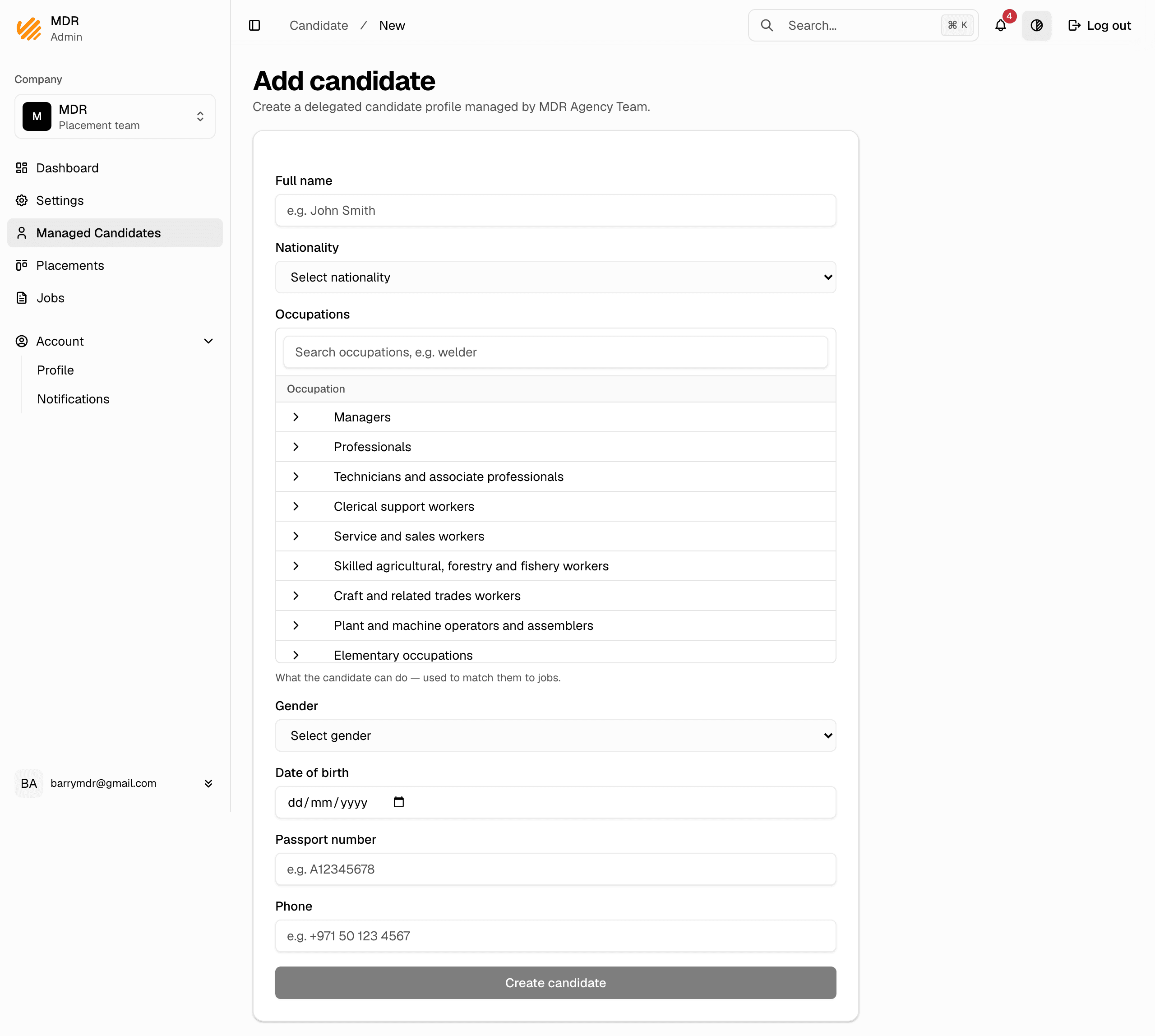
- Go to Managed Candidates and click Add candidate.
- Fill in the details:
- Full name (required)
- Nationality (required)
- Occupations — what the candidate can do, used to match them to jobs
- Gender (required)
- Date of birth (required)
- Passport number
- Phone
- Click Create candidate. The new profile opens.
Notes
- If you see "Select an agency team to add a candidate", switch to an agency team first — you cannot add candidates from an employer team.
- The profile is managed by the team: any member of that team can view and edit it.
- To see and edit profiles later, see Manage candidates.