For employers
Post a job
Create a job post and get it approved, so agencies can put candidates forward to it.
You post jobs from the Job Posts page of your company dashboard. Each job belongs to the employer team you are working in.
Create the job post
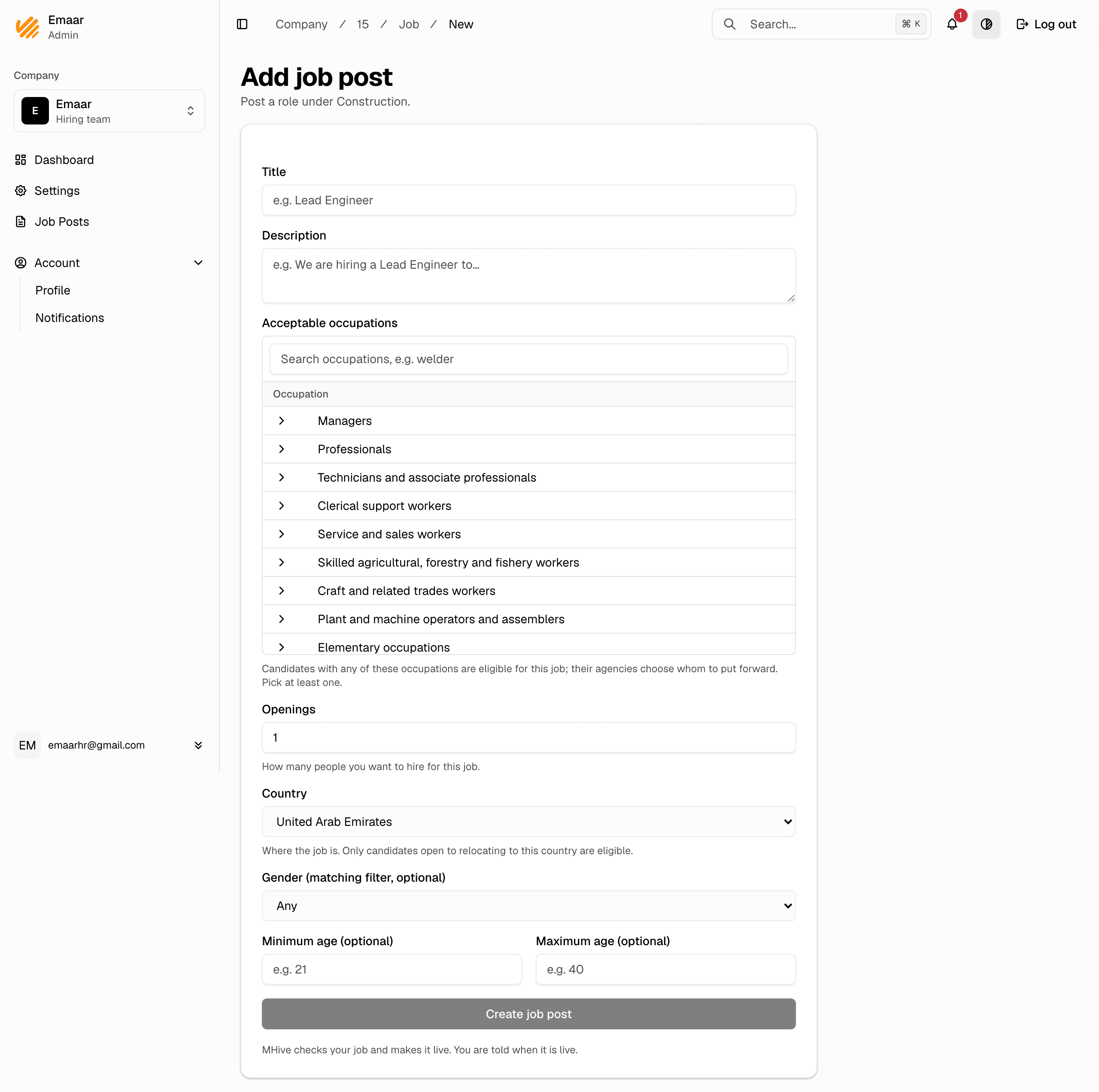
- In the company dashboard, go to Job Posts and click Add job post.
- Give the job a clear title and a short description.
- Pick the acceptable occupations. Only candidates with one of these occupations fit the job — pick at least one.
- Set the openings: how many people you want to hire.
- Pick the country where the job is. Only candidates open to relocating to that country fit it.
- If the role needs it, set the optional gender and age filters.
- Under What the job offers, add the pay, the contract length, the start date, the hours a week, and whether housing and food are provided. Each is optional. Pay needs its amount, its currency and how often it is paid. Agencies see these on the job and in the job list.
- Click Create job post.
Approval
A new job starts as In review. MHive checks it, opens it to agencies and makes it Live, and you are told. Until then, only your company and MHive can see it. Other employers never see your job.
Once it is live:
- The agencies working the job see which of their candidates fit it, and put the ones they choose forward.
- The candidates they put forward appear on the job page, each with their agency. See Review candidates.
To work with an agency you already know, write to [email protected].
Follow your jobs
The Job Posts page lists every job your team posted, with its status.
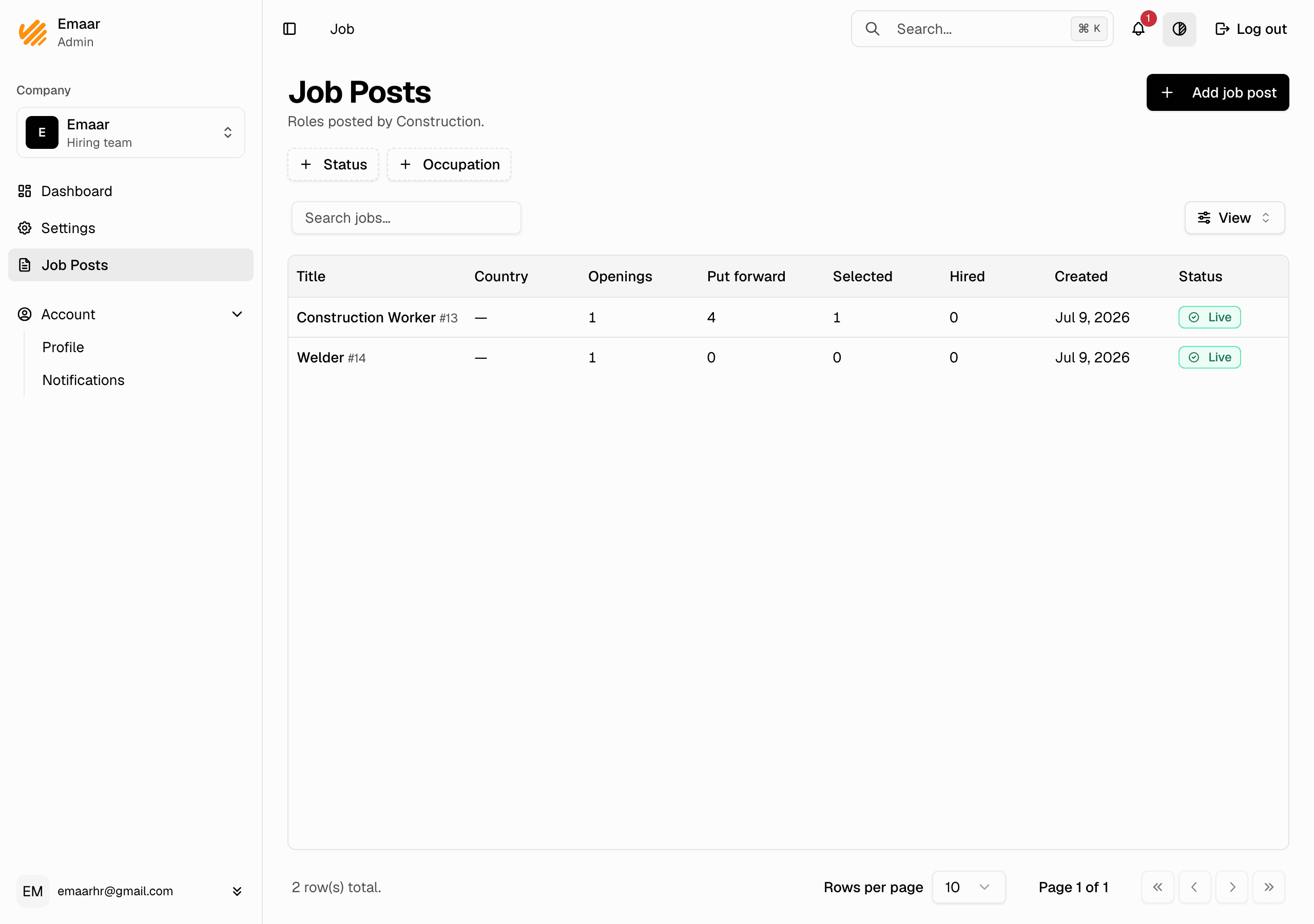
- In review — waiting for an admin.
- Live — agencies put candidates forward.
- Paused — nobody new is put forward until you resume it.
- Closed — you closed it.
- Declined — an admin turned it down. Edit the job and try again, or ask a platform admin why.